| Disk Drive Dangers - SMART and WMI |
| Written by Mike James | |||||
| Wednesday, 08 August 2012 | |||||
Page 4 of 4
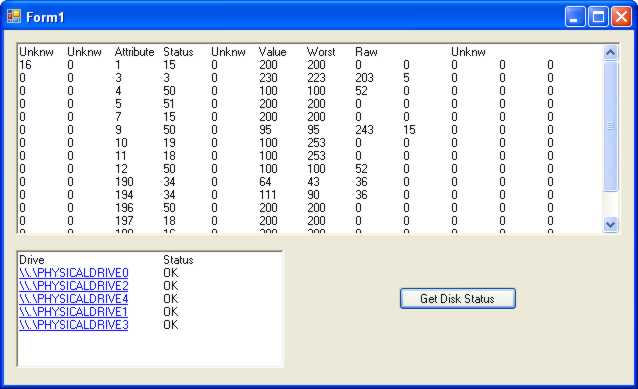
To get and decode the data returned by WMI we need another RichTextBox and some appropriate headings: richTextBox2.Text = Now to display each set of FailData we need a foreach loop: foreach ( ManagementObject FailData in The data is returned as an object type but we know it’s really a byte array and the simplest way of working with it is to retrieve it and cast it to a byte array: Byte[] data = (Byte[])FailData. Finally we can add each attribute to the RichTextBox making use of the fact that each block of 12 bytes corresponds to an attribute: for (int i = 0; i < data[0]-1; i++) If you now run the program you will see the raw SMART data displayed as a table. Your next task is to process it and build it into a useful reporting tool that will warn you if anything is going wrong.
The raw SMART data If you want to work with the data in a more object-oriented way then you probably need to create a SMART class but a SMART struct also works well. For example, a struct that holds values for the most important failure indicators would be: public struct SMARTAttribute Packing the data into the struct is just a matter of detecting which attribute the current 12 bytes of data represents and the best way to do this is with a switch: SMART smartdata; You can add extra code to initialise the other data values and retrieve other attributes if you need them. Once you have seen how it’s done it’s not so difficult. It is also possible to run such WMI queries remotely once you have worked out how to set the system up to allow it. See Getting remote DCOM (WMI) to work. If you would like the code for this article register with I Programmer and visit the codebin. More InformationUSENIX study - Disk failures in the real world Related ArticlesGetting remote DCOM (WMI) to work
Comments
or email your comment to: comments@i-programmer.info To be informed about new articles on I Programmer, install the I Programmer Toolbar, subscribe to the RSS feed, follow us on, Twitter, Facebook, Google+ or Linkedin, or sign up for our weekly newsletter. <ASIN:0672321440> |
|||||
| Last Updated ( Wednesday, 08 August 2012 ) |