| WriteableBitmap in Silverlight |
| Written by Ian Elliot | |||
| Monday, 09 August 2010 | |||
Page 2 of 2

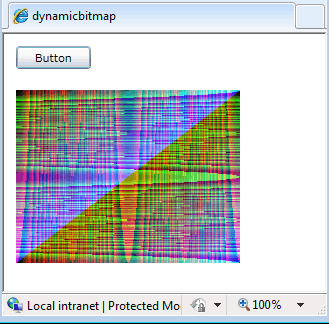
An ExampleWith these extension methods defined we can now give an example of accessing pixels: WriteableBitmap wbmap = new First directly set the pixel in the top left-hand corner to opaque black, i.e. alpha 255 other channels zero: wbmap.Pixels[0] = 255 << 24; Next we can use the extension method to set the pixel at x=10,y=9 to green: wbmap.setPixel(10,9, and finally we can use the getPixel method to check that the pixel just set is indeed green: Color pixelcol=wbmap.getPixel(10,9); Of course there is the small matter of displaying the bitmap we have just created. There are a number of controls that accept a BitmapSource which all Silverlight bitmap classes inherit from but the simplest and most direct approach is to use an Image control. If you drop and Image control on a page to display a WriteableBitmap all you have to do is: image1.Source = wbmap; Creating WriteableBitmapsIn principle there are other ways to create a WriteableBitmap but there are some complications that you need to be aware of. For example, you should be able to simply create a WriteableBitmap from a standard bitmap using the constructor: WriteableBitmap(bitmapsource); but if you try this with a BitmapImage loaded from a URI you will more than likely get a null object error. The reason is that the bitmap might not be downloaded yet. This makes it more difficult to use this constructor to load a WriteableBitmap. You have to make sure that the image has actually loaded before you try to create a WriteableBitmap from it. The third constructor is simpler because it doesn't have the problem that the image might not be downloaded yet: WriteableBitmap(UIElement,transform); This creates a bitmap by rendering the UIElement and applying the transform. So for example: WriteableBitmap wbmap2 = new renders a button and displays it in an Image control. If you would like to rotate the button WriteableBitmap wbmap2 = new Notice that the Silverlight version of RotateTransform doesn’t have a constructor that accepts properties but this doesn’t matter because we can use an object initializer to do the same job. A complete exampleFinally, as an example of a dynamic image, the following plots a range of colours which depend on the position of the pixel according to a simple formula: private void button1_Click(
To access the code for this project, once you have registered, click on CodeBin. If you would like to be informed about new articles on I Programmer you can either follow us on Twitter, on Facebook , on Digg or you can subscribe to our weekly newsletter.
If you would like to see an unconventional use of the WriteableBitmap via a custom mapping function then see: Silverlight Mandelbrot Zoomer
|
|||
| Last Updated ( Monday, 30 August 2010 ) |